Workspace interactions
Select, drag, snap, and undo
Learn what changes when you click an item, which handles you can drag, how snapping behaves, and how to recover from a change.
What you will accomplish
- Recognize selected and editable states
- Know whether to drag an object or one of its handles
- Use snapping without fighting the canvas
- Cancel or undo an action safely
Click first, then read what appears
Return to Select, then click the deck section, stair, roof, opening, note, or shape you want to change. For beam work, select the parent deck section and use the small settings control beside the beam grabber. Clicking the beam body does not open Beam Settings.
This selected state is the main way DeckDraft answers “what can I do here?” If the inspector title is not the item you expected, click the intended geometry again before changing a field.
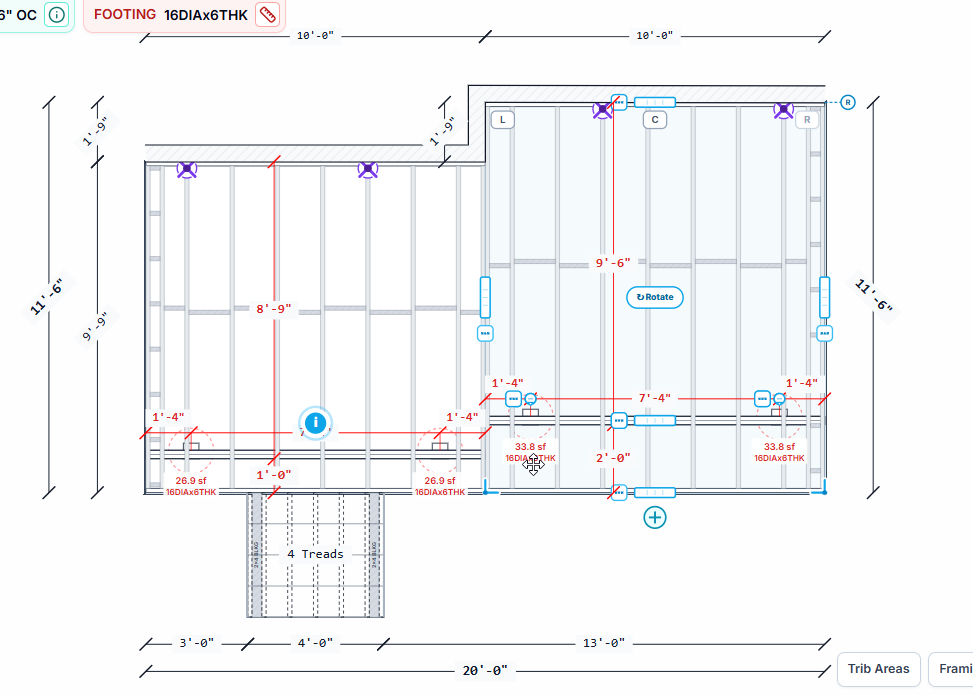
Individual footings are different: the right inspector remains organized around the parent deck bay. Use the small three-dot button beside a footing marker to open that footing’s Design, Overrides, and Summary controls beside the drawing.
- 1Choose SelectLeave any drawing tool so a click edits existing work instead of creating something new.
- 2Click the itemWatch the inspector title, highlighted geometry, handles, and nearby menu buttons change together.
- 3Choose direct or exact editingDrag on the canvas for a fast visual change, or use the inspector when the value must be exact.
Drag the body to move; drag a handle to reshape
- Drag a deck section or attached landing by its body when the whole object is meant to move.
- Drag a visible edge or corner handle when only width, depth, taper, clip, or another boundary should change.
- Drag a beam line to change its setback while keeping it parallel to the joists.
- Drag a stair along its selected deck edge to reposition it; use its end handles to change width.
- Watch the live dimensions while dragging, then use the inspector to enter the final exact value.
Let the drawing catch nearby geometry
The Snap selector controls the movement increment for normal dragging. Nearby deck edges and corners can also catch each other so connected sections line up without pixel-level placement.
Shape Snap controls reference-point and edge capture for notes, lines, polygons, and drawn members. Hold Alt while drawing or dragging an annotation when you need to bypass that capture temporarily.
Move around without changing the drawing
- Mouse wheel or trackpad pinch zooms.
- Two-finger trackpad drag pans.
- Middle mouse, right mouse, or Space plus drag pans from the canvas.
- Fit drawing recenters the active view.
- Fullscreen gives dense drawings more room.
Cancel, undo, or redo
- Escape cancels the current draft or leaves the active drawing tool.
- Select returns the canvas to normal editing mode.
- Ctrl or Command plus Z undoes the last change.
- Ctrl or Command plus Shift plus Z redoes it.
- Delete or Backspace removes the selected object when you are not typing in a field.
Still unclear?
Ask Docs AI about this page, or open DeckDraft when you need AI Help to read the active job.