Start here
Save jobs and export plans
Understand browser backup, saved jobs, customer information, export readiness, and PDF output.
5 minUpdated July 28, 2026
What you will accomplish
- Know the difference between backup and Save Job
- Prepare title-block information
- Run a final export review
Backed up is not the same as saved to My Jobs
Browser backup protects the working draft on the current device. Save Job writes the design to your DeckDraft job library so you can find it again in My Jobs.
Use Save after meaningful milestones and before starting another job. Ctrl or Command plus S runs the normal save action.
Complete the title-block information
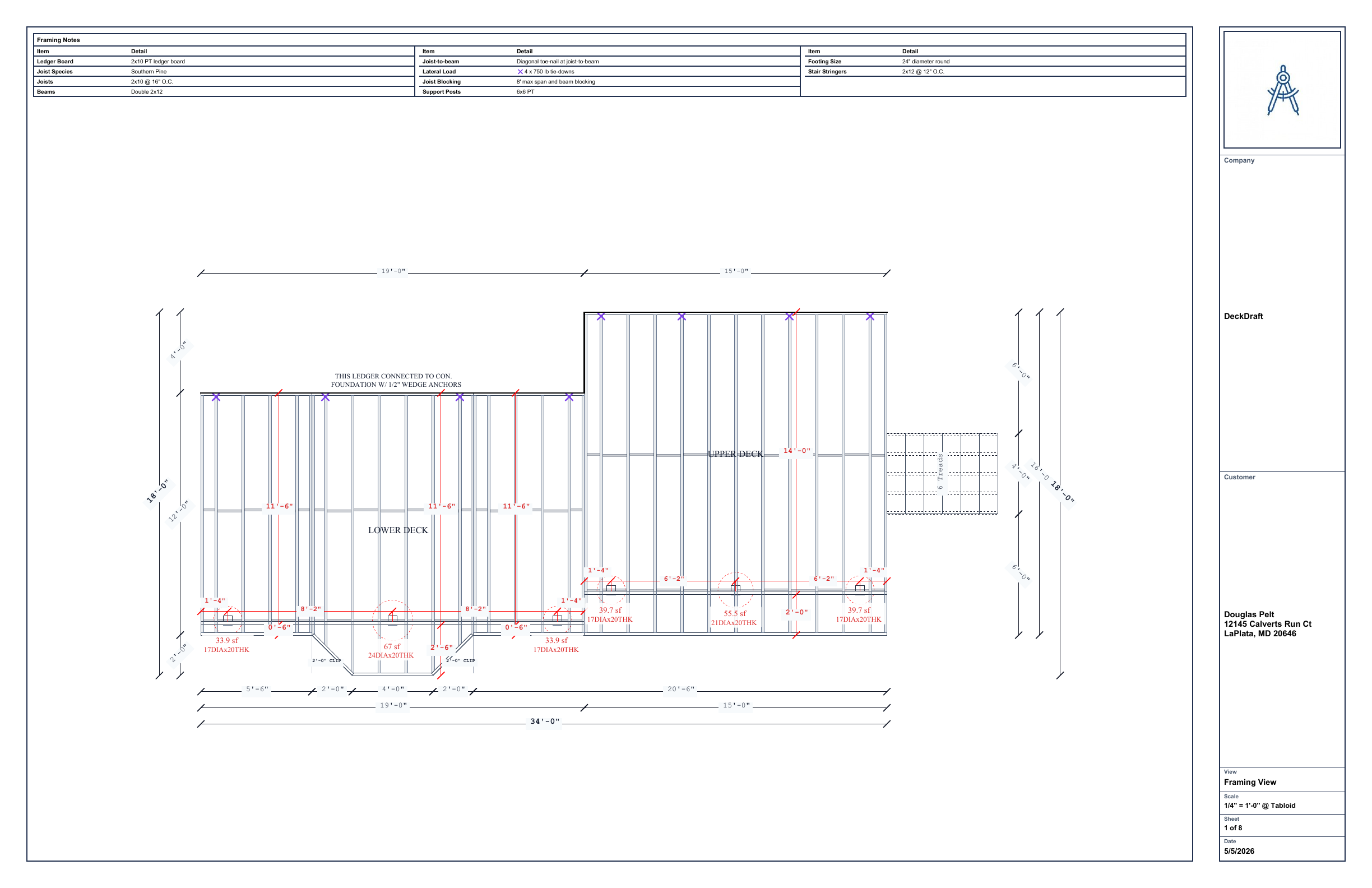
Customer name, street, city, state, ZIP, project specifications, and company branding make the plan package easier to identify and review.
DeckDraft can export without complete customer information, but it warns when important title-block fields are missing.
Run the final check in job order
- 1Check the drawingReview advisor markers, dimensions, attachment, stairs, rails, and support locations.
- 2Check quantities and detailsConfirm the takeoff assumptions and make sure the applicable connection details are present.
- 3Choose the outputUse Auto Fit unless the permit or reviewer requires a specific drawing scale or sheet size.
- 4Export and inspectOpen the completed PDF and inspect every sheet before sending it to a customer, supplier, engineer, or jurisdiction.
Still unclear?
Ask Docs AI about this page, or open DeckDraft when you need AI Help to read the active job.