Workspace interactions
Annotations, plan callouts, and the notes table
Choose between drawing-linked generated callouts and a fixed notes table, and understand why manual annotations are a separate layer.
What you will accomplish
- Translate “legend” into the Notes Table option
- Choose Notes Table or Plan Callouts for the current job
- Select, move, edit, hide, and restore generated callouts
- Keep manual annotations separate from generated plan notes
First, separate the three note systems
What many users call the plan legend is labeled Notes Table in DeckDraft. It is the fixed table of generated job information at the top of a supported plan sheet.
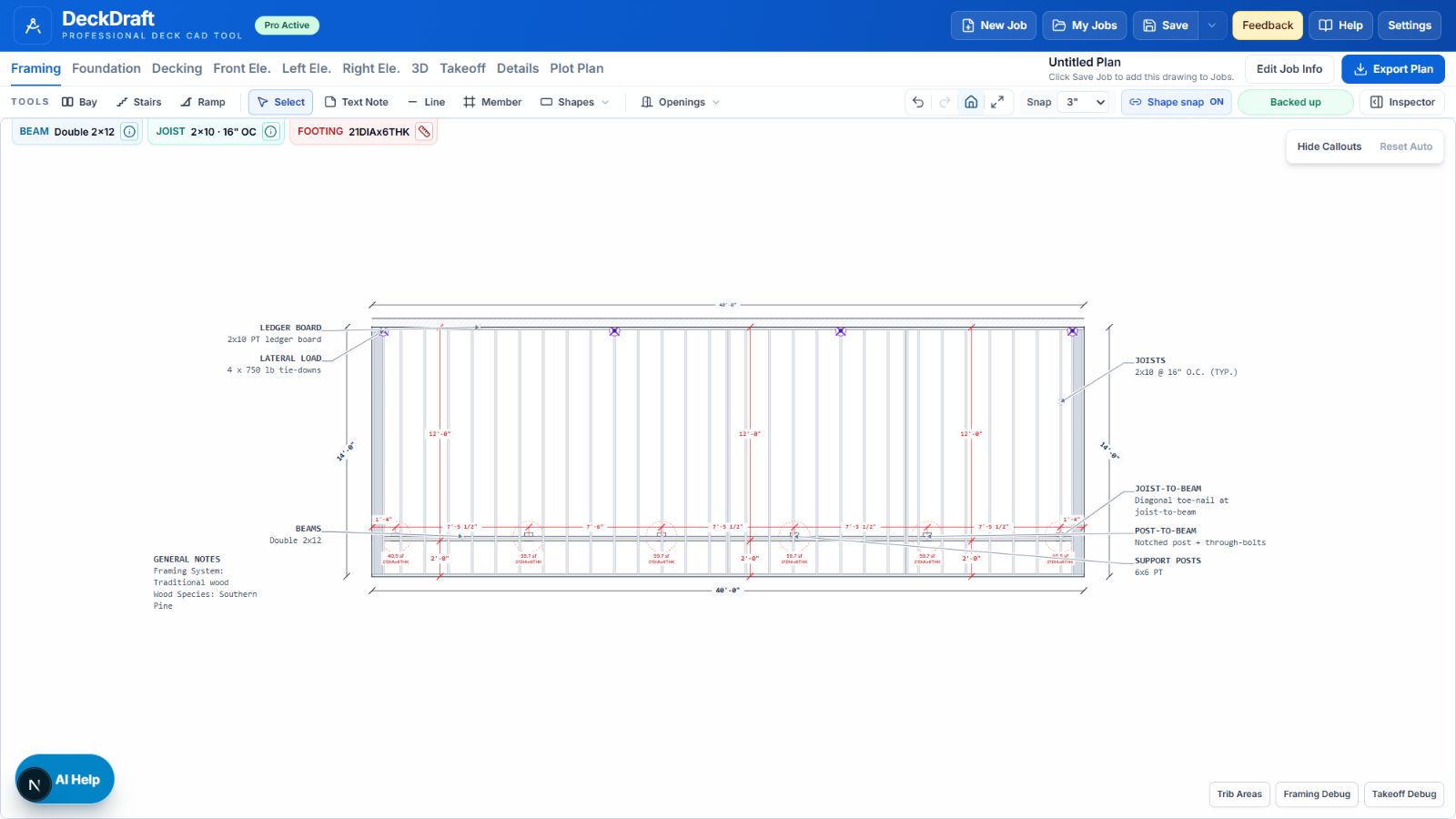
Plan Callouts use the same generated job information but place compact labels beside the drawing with leaders aimed at the modeled beam, joist, footing, decking, railing, stair, or roof item they describe.
Manual annotations are the Text Note, Line, Member, Rectangle, Circle, and Polygon tools. You place and style these yourself. Changing the generated-notes format does not delete or convert them.
Choose the format for this job
- 1Open Current Job SettingsChoose Customer & Site, then scroll to Plan output.
- 2Open Generated Plan NotesChoose Notes Table for the fixed legend-style table or Plan Callouts for labels connected to the drawing.
- 3Review all supported plan viewsThe choice affects Framing, Foundation, Decking, and Roofing on the canvas and in the PDF. Elevations are unchanged.
Choose based on how the sheet should read
- Use Notes Table when you want a predictable fixed block that lists every generated field and matches older job output.
- Use Plan Callouts when you want the reader to connect each note directly to the member or assembly it describes.
- Plan Callouts combine related product fields into compact multi-row labels and omit absent N/A features; duplicate specifications can use one TYP. callout.
- A dense or unusually shaped job may need a quick callout-layout pass before export. The Notes Table needs less placement review.
Click a callout to change its interaction state
In Plan Callouts mode, click a label or its leader. Selected Callout opens in the inspector, where you can change visibility, leader visibility, title, body, and Automatic, Left rail, or Right rail placement.
- Drag the label to pin its position.
- Drag the arrow tip to retarget the leader; this also pins the label so the text does not slide.
- Drag the elbow sideways to lengthen or shorten the horizontal landing.
- Use Reset Auto to clear saved placement, arrow, bend, hidden, and text edits for the active plan.
- Hide one callout from its inspector, then use Restore N Hidden in the toolbar when you need it back.
Show and Hide are saved output decisions
The plan-toolbar Show Callouts or Hide Callouts control changes both the canvas and the exported PDF. If callouts are hidden while Plan Callouts is the selected format, the PDF contains no generated plan notes; DeckDraft does not bring the Notes Table back automatically.
Manual text, line, member, and shape annotations remain separate and continue to export according to their own view and visibility settings.
Still unclear?
Ask Docs AI about this page, or open DeckDraft when you need AI Help to read the active job.